Pages

No display on the monitor

Posted on Saturday, September 27, 2014 by Unknown


Tip: The following is monitor troubleshooting and not for users who get readable picture when it is first load but then gets distorted when opening Windows.

Monitor is not on

Make sure the monitor is on. If no power LED (green or orange light) is seen on the monitor display try pressing the power button until it comes on. If no light comes on after several attempts continue to below connections not connected properly.

Computer is asleep

If your computer monitor was on and you stepped away from the computer and upon returning it was black it's likely that the computer is asleep. Try moving your mouse, clicking the mouse buttons, or pressing any key (space bar) on the keyboard to wake it up.

Connections not connected properly

Computer VGA port and cableMake sure that you are connecting the monitor to the back of the computer in the 15-pin connector as shown to the right or older computer 9-pin connection.
Note: Newer computers may be using a DVI or HDMI cable for the monitor.
If the computer is properly plugged in, make sure it is getting power.
If you are not receiving power from a known working wall outlet and if the power cord is removable, replace it with the one connected to the computer and power on the monitor again. If the monitor still does not get power or it is not removable, it is recommended that the monitor be replaced or serviced at a local TV or computer repair shop.
If the monitor is receiving power, check the LED status light.
If the light is orange or flashing ensure that the monitor is not in a suspend mode by moving the mouse or pressing a key on the keyboard. If the computer does not get a display by moving the mouse or touching the keyboard, turn off the computer and monitor and reconnect the data cable from the back of the computer, and if removable, the back of the monitor. Turn the computer back on; if you still encounter the same issue, continue reading through the other possibilities.

Monitor settings are not correct

Verify the brightness and contrast is turned up or adjust the brightness and contrast. If adjusting the brightness or contrast has no affect on the monitor continue reading through the other possibilities.

No POST

Does the computer beep when it is powered on or does it appear that the computer has activity? If the computer does not beep or beeps abnormally the computer is experiencing a hardware issue or is exhibiting a No POST. Run through the POST troubleshooting steps to determine the failure.

Hardware Issue

If you have followed the above recommendations and are still encountering the same issue, it is likely that the computer may have either a bad video card or monitor. The best method of determining this is to do one or both of the following:
  • Disconnect your monitor and connect it to another computer. This can be a friend or family's computer or it can be taken to a service center.
  • Borrow a computer monitor and connect it to your computer. This will not harm the other computer monitor in any way.
If your monitor works on another computer it is safe to assume that the video card or potentially the motherboard within the computer is bad.

Windows error "Data or no disk loaded" with audio CD Bad or non audio CD is inserted

Posted on by Unknown


CDMake sure the CD you have currently in the computer is not bad or being misread by the computer by inserting another known good audio CD into the computer.
If another audio CD works it is likely either that the CD is dirty or may be an enhanced CD incompatible with the CD Audio player. Steps on properly cleaning a CD can be found on our cleaning page.

MCI CD audio driver not installed or is corrupt

If no audio CD is working in the computer but other CDs work fine, it is likely that the MCI CD audio driver is not installed or is corrupt on the computer.
  • CD-ROM not working in Windows 9x, 2000, or XP.
To reinstall or install the MCI CD audio drivers follow the steps below:
  1. Click Start, Settings, Control Panel
  2. Double-click on Multimedia
  3. Click the Advanced tab or Device tab.
  4. Double-click Media Control Devices.
  5. Double-click CD Audio Device (Media Control).
  6. If this device is present and no audio CDs are working, click remove on the general tab in CD Audio Device (Media Control) properties.
  7. Close out of all open Windows to get back to the Control panel
  8. In Control panel double-click Add New Hardware.
  9. Click Next, select No, click Next -- In the box listing the available hardware, select Sound Video and Game controllers and click Next.
  10. In the Manufacturers box select Microsoft MCI.
  11. In the Models box select CD Audio Device (Media Control).
  12. Click Next and Finish.
  13. Once Windows has completed the installation of the new device, reboot the computer.

What should I do when a computer freezes?

Posted on by Unknown


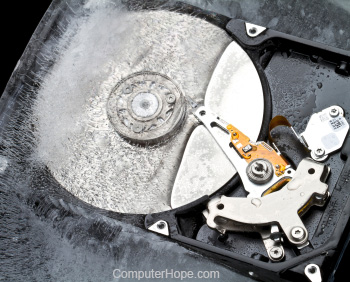
Frozen computer hard drive 

This document contains recommendations on what to do if the computer freezes or dead locks. If your computer has stopped responding, follow the steps below to attempt to get the computer to unfreeze.
Tip: If you are concerned about an important document that hasn't been saved, the program you are using may have an AutoSave feature, and you may be able to recover a recent version of the document after rebooting.
Note: If your program does not have an AutoSave feature or the ability to recover a recent version of a document, you may lose all unsaved work due to a freeze or dead lock. It is important to save your work often to minimize or prevent this possibility.

Give the computer some time

Wait. Give the computer a few minutes to process. Sometimes a computer may appear to be froze, but it is really just slow or busy processing a complex task.

Is the computer dead locked?

Computer keyboard num lock LEDSee if the computer can respond to anything by pressing the Caps Lock key on the keyboard and watching the Caps Lock led (light) to see if it turns off and on. If the computer can turn on and off Caps Lock, continue to the next step. If nothing happens, the computer is dead locked, and you must reboot the computer.

End Task the Not Responding program

If the Caps Lock can turn off and on, Windows is still working, but another program may not be responding and causing the computer to freeze. Press Ctrl + Alt + Del to open the Windows Task Manager. If the Task Manager can open, highlight the program not responding and choose End Task, which should unfreeze the computer.
Note: It could still take ten to twenty seconds for the unresponsive program to be terminated after you choose End Task.

Reboot a frozen computer

If none of the above steps helped, you must reboot the computer. To reboot a frozen computer, press and hold down the power button until the computer turns off. Once the computer is off, wait a few seconds, then turn the computer back on and let it start as normal.
Note: During the computer startup process, you may see a screen asking if you want to start the computer in Safe Mode or Start Windows Normally. Choose the Start Windows Normally option and see if Windows starts up correctly, without error.

Resolve Hardware or Device Driver issue

If after trying all of the above there may be defective hardware or a device driver is not working correctly. A defective hard drive, stick of RAM, video card, or other piece of hardware can cause a computer to freeze. A device driver can also cause a computer to freeze if it is out of date, conflicting with another driver, or just not working properly.
If you determine that a defective piece of hardware is causing the freezes, you should replace the hardware right away, to prevent further damage to the computer. If a device driver is at fault, you can try to download the latest driver from the manufacturer's website and install it before the computer freezes, or use another computer to download the driver and try installing the driver on your computer.
If you are unable to install the latest driver before the computer freezes, another option is to start the computer in Safe Mode. Once in Safe Mode, you can access Device Manager and uninstall the hardware device corresponding to the device driver that is not working correctly. Then, restart the computer and load into Windows normally. Windows should detect the hardware that you uninstalled and try to reinstall the device driver. This process may be enough to fix the issue and stop further freezes from occurring. You can also try installing the latest driver at this point, to make sure your computer is up-to-date for that device driver.
You can also try accessing the computer BIOS and disabling any hardware that is working properly, to see if that stops the freezes from occurring. However, you should still replace that hardware, as you may not be able to use your computer fully if the hardware remains disabled.

Take PC to Repair Shop

If none of the above options work or are possible to try, we recommend you take your computer to a computer repair shop and allow a computer technician to diagnose and fix the problem.