Pages

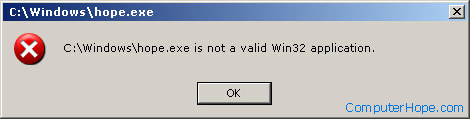
Not a valid Win32 application

Posted on Saturday, September 27, 2014 by Unknown


Not a valid Win32 application Windows error

File is corrupt, bad, or missing

If the file or program you're attempting to run is corrupt or missing, Windows will be unable to execute the file properly and sometimes generate this error message.
Download files
If you downloaded this file and verified it is complete and compatible with your version of Windows, delete the file and try downloading and running it again. It's possible during the download that the file became corrupted.
Finally, if the second download does not work, try downloading the file from a different webpage. The person or company maintaining the website mistakenly uploaded a corrupt version of the file you are attempting download.
Installing a program from a CD or other disk
If you're attempting to install a program and are getting this error, verify that the CD is clean. If the CD is dirty or bad, you could get this error during the install or after the program has been installed because it was not copied properly onto the computer.
Running a program from the computer
If you're running the program from a shortcut on the computer, verify that the program is still on the computer. In some cases if the program is no longer installed on the computer you may get this error.
If the hard drive is corrupted or bad it can also cause working programs to fail either because not all the data can be read from the hard drive or because the program has become corrupted while on the drive. Run scandisk and defrag on the hard drive to check for any potential errors.
Long file name issue
Make sure the program or file you're attempting to run does not contain the same name as the long file name directory it is contained in. For example, executing a file named "program" in the "program files" directory can cause errors in some versions of Windows.
Additionally, if you're attempting to install a program and after the install the program does not work, you may also want to try installing the program in a different directory.
Bad file
Any file can be changed or renamed to be a .exe file. If you're downloading the file, make sure the file is supposed to be a .exe file and that it's not being changed. If you're attempting to create a .exe, file make sure you're compiling the file for Windows and never just rename a file to a .exe file. For example, renaming a .bat file to a .exe file will not make the file an executable file. For a file to become an executable file it needs to either be compiled or converted through a software program designed to convert the file.

File is not designed for your version of Windows

If you're trying to run a program that is not designed for your version of Windows you may get this error. Although many older programs designed to work in older versions of Windows will work with new versions of Windows, unfortunately, not all programs will work.
  • If the program is an older MS-DOS program or early Windows program you may get this error.
  • If the program is designed for a 64-bit version of Windows and you're running it in a 32-bit version of Windows, it will not work and generate this error.
Getting old MS-DOS games to run in Windows.

File is a virus, worm, or other malware file

This error can be generated by a file that is a virus, worm, Trojan, or other malware file. Often, this will be caused because the virus scanner installed in the computer will not allow the file to be installed or run. Try scanning the file to verify it is not a virus or infected.
If the file has been checked and is clean, it is still possible that the virus protection program or another program installed on the computer is causing issues during the install or execution of the program. Boot the computer into Safe Mode and try running the program; booting the computer into Safe Mode makes sure nothing is running in the background that could be causing this issue.

Hardware incompatibility

If you're getting this error during the installation of a program it's also possible that the CD-ROM drive or the drive you're installing the program from is not compatible with Windows or has drivers that are not compatible with Windows.

Missing Microsoft Windows .dll files

Posted on by Unknown


Windows DLL 

This document is meant to be a solution for users who are encountering missing .dll errors or other error messages related to .dll files. Before trying the recommended resolutions to resolving these errors, we suggest if you're getting a single missing .dll error, that you search for that .dll file on Computer Hope.
For example, if you're getting an error similar to "Internet Explorer encountered an error in KERNEL32.DLL at 0137:BFF3191C", search for "kernel32.dll" to make sure a specific document has not been created for your issue. In some situations a .dll file error may be caused by a specific situation.
Search for .dll:

If the Computer Hope search does not return any results for your .dll file or you're encountering issues with multiple .dll files, continue reading our recommendations for resolving your issue.

Downloading a .dll file

In some situations, it may be possible to download or copy a .dll file from another computer onto your computer to resolve the issue. However, because .dll error messages are almost always a more serious issue, replacing the missing .dll file is only going to causes additional errors, try the below suggestions before trying to find a .dll file to download.
If you still want to try to download or copy a missing .dll file, unfortunately, Computer Hope does not have a library of downloadable .dll files; however, there are other sites that do offer this service. Click here to open an external search for missing .dll files.

Safe Mode

If you're encountering .dll errors that are preventing you from getting into Windows, to troubleshoot the computer, boot the computer into Safe Mode. Once successfully in Safe Mode, you can continue with the steps below.
If your computer boots normally and can bypass the .dll errors and still operate Windows, you can continue following the steps below.

Microsoft Windows XP and above users

If you're a Microsoft Windows XP or later Microsoft has included some tools that can help resolve .dll file errors; before trying any of the below recommendations you, may want to first try the below suggestions.
Restoring computer back to an earlier date
First, try restoring the computer back to an earlier date, this troubleshooting step is a quick and easy recommendation that can resolve lots of problems with Microsoft Windows computers.
Windows SFC command
Use the Windows XP SFC command to have windows scan and repair files; to run this command, follow the steps below. Additional information about the SFC command can be found on our SFC command page.
  1. Click Start
  2. Click Run
  3. Type "sfc /scannow" and press enter.
Once the above steps have been completed, Windows will verify that all protected windows files are intact.

Issue with .dll files only with a specific program

If you're encountering the missing, corrupt, or other errors relating to .dll files only when you open or run a program, it's likely an issue with that program. Resolving program-specific errors can be much easier than operating system related .dll errors.
If the program you're attempting to run has worked in the past on your computer and has only recently started to get the .dll errors, reinstalling the program generating the errors will almost always resolve your problem.
Additionally, while reinstalling the program, it's also a good idea to check if updates or patches have been made available by the developer of your program. Updates are often found through the developer's website.

Recently uninstalled program

If you have recently uninstalled a program on the computer, that program may have removed a .dll file that is necessary for Windows or a Windows program to work properly.
If you've already tried the above recommendations, you may want to reinstall the program to get whatever file has been deleted back on the computer. If this resolves your .dll error message and you want to uninstall the program again, during the uninstall process, make sure that you click "No" or "No to all" when asked to delete a system file or any file that may be used by another program.

Recently installed program

If you have recently installed a program and after the installation began encountering your .dll error messages, we suggest you first check if updates are available for the program. In some situations, a program may need to be updated for it to work properly on your computer. Updates are often found through the developer's website.
If no updates are available for the program, try uninstalling the program to resolve the issue. If this does correct your issue, we suggest you contact the developer of the program for additional support on getting the program installed on the computer without it causing errors.

Virus, spyware, or other malware installed on the computer causing your .dll error

A virus, spyware, or other malware program to cause .dll errors; and therefore, we suggest users make sure to run a full virus and spyware scan on your computer.

Windows .dll error message or .dll errors when trying to do something within Windows and not a program

Microsoft Windows .dll errors or .dll error messages that occur when starting Windows or trying to do something within Windows, such as opening the Control Panel, can be more serious and unfortunately more difficult to resolve. For these errors we suggest you run through the basic troubleshooting steps for your operating system.
If running through these steps you encounter the same issues to resolve your .dll errors, we suggest you erase everything and reinstall Windows.
If issues continue after windows has been reinstalled or errors occur during the installation of Windows, it's possible that you may have a hardware issue that is the cause of all your problems.

How do I fix the Windows blue screen errors?

Posted on by Unknown


Before fixing a Microsoft Windows blue screen or blue screen of death error (BSoD), you must first identify what error it is, as there are multiple types of blue screen errors.
Note: If you are getting a blue screen and then your computer immediately reboots without being able to read the text in the blue screen, follow the steps below. If you're unable to get into Windows to perform the steps below, boot the computer into Safe Mode.
  1. From the Desktop or in the Windows Start menu, right-click on My Computer or Computer.
  2. Click the Properties option.
  3. In the System Properties window, click the Advanced tab or the Advanced system settings link.
  4. On the Advanced tab, click the Settings button in the Startup and Recovery section.
  5. In the Startup and Recovery window, uncheck the Automatically restart check box.
  6. Click Ok.

Blue screen errors

Windows NT, 2000, XP, Vista, and later versions of Windows have a blue screen error that's similar to the example shown below. These error messages often contain more detailed information, and will contain information that can be searched for and found. If you're not getting a blue screen error that looks like the example below, skip to the next Fatal exception section.
Windows XP blue screen stop error
Note: If you are getting a solid blue screen with no white text, you are not encountering a BSoD. It's likely a problem with your video card, monitor, or other hardware. Follow the no display on monitor troubleshooting steps to diagnose this problem.
  1. Identify the blue screen by locating a line containing all capital letters with underscores instead of spaces, such as the above example, BAD_POOL_HEADER. Write this information down. If you do not see anything written in all caps with underscores like this, skip this step.
  2. Get either the STOP: error message at the top of the error, or in the "Technical Information:" portion of the error. For example, in the above error it's STOP: 0x00000019 ... write the first portion of this error message down.
  3. Finally, if technical information is shown, write down the file and the address.
Once you have the above information, you can start troubleshooting the issue. Below are common blue screen errors and links to pages that contain the troubleshooting steps for some of these errors. If your error is not listed in the below section, search for the error you wrote down.
BAD_POOL_HEADER
DRIVER_IRQL_NOT_LESS_OR_EQUAL
DRIVER_POWER_STATE_FAILURE
INACCESSIBLE_BOOT_DEVICE
IRQL_NOT_LESS_OR_EQUAL
NTFS_FILE_SYSTEM
PAGE_FAULT_IN_NONPAGED_AREA
STATUS_IMAGE_CHECKSUM_MISMATCH
THREAD_STUCK_IN_DEVICE_DRIVER
UNEXPECTED_KERNEL_MODE_TRAP
UNKNOWN_HARD_ERROR

Fatal exceptions

Many of the blue screen error messages you'll encounter with earlier versions of Windows will be fatal exception error messages or Fatal 0E messages. If your blue screen message starts out with A fatal exception 0E ... or An exception ..., you are encountering this error. For these blue screen errors, follow the fatal exception error troubleshooting steps.
Windows blue screen of death